

MisticEase™ Video Thumbnails from Pasted URLs & Draggable Floating Popups – WordPress Plugin
Paste. Publish. Done.
Paste a video URL and save. Your published page shows a thumbnail, and the video opens in a popup. Visitors can drag that popup wherever they like and keep reading with it open.
Supports YouTube, Vimeo, and Dailymotion videos, and images from your Media Library.




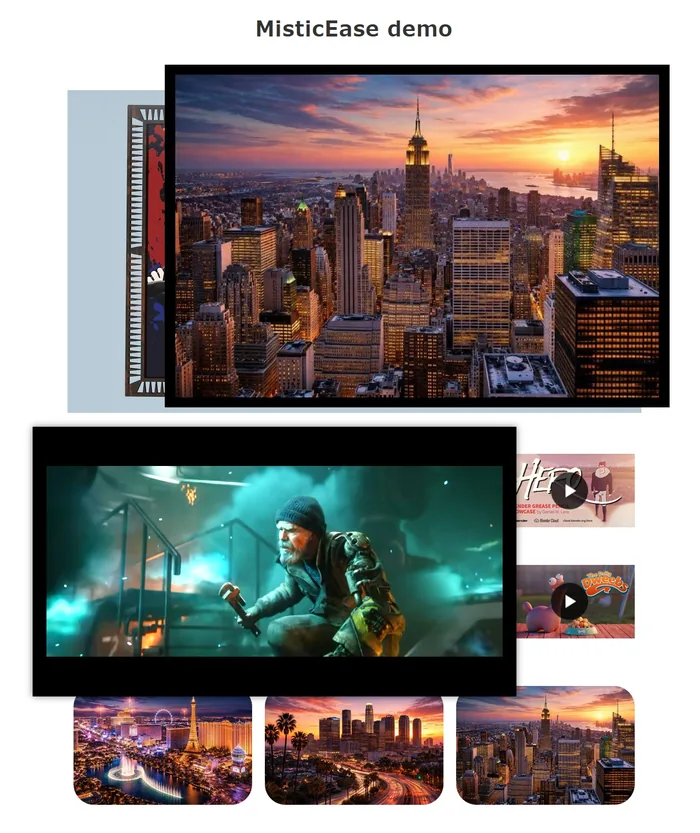
Every video and image on this page opens with a click. Hover over the open popup and a drag button appears. You can also grab any of its four edges. Leave it where you like and keep reading.
Dragging is available from desktop down to tablet-size windows.
How to add a video popup in WordPress: paste the URL and save
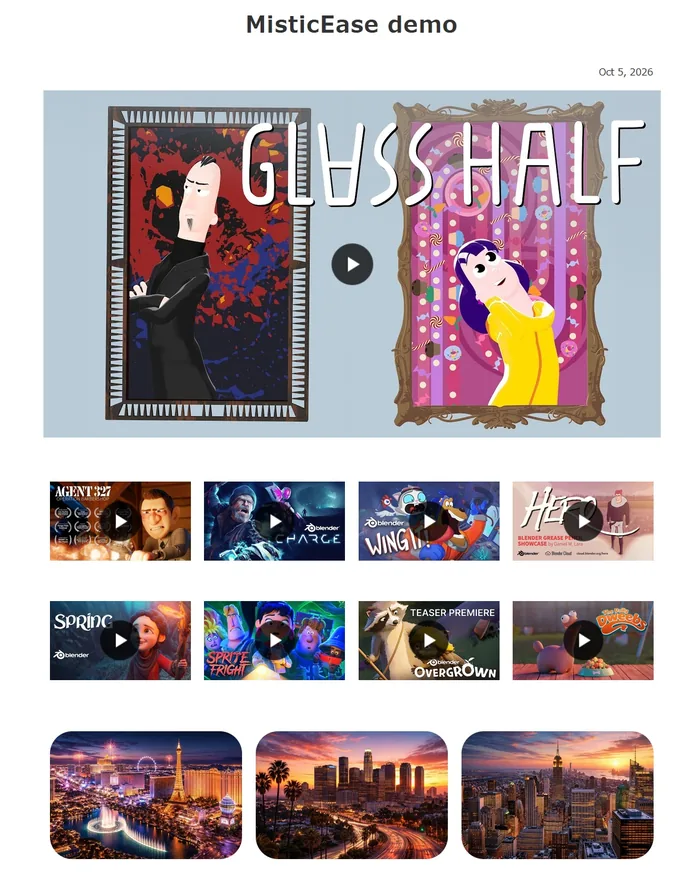
For example, a page that shows off your favorite videos and images.
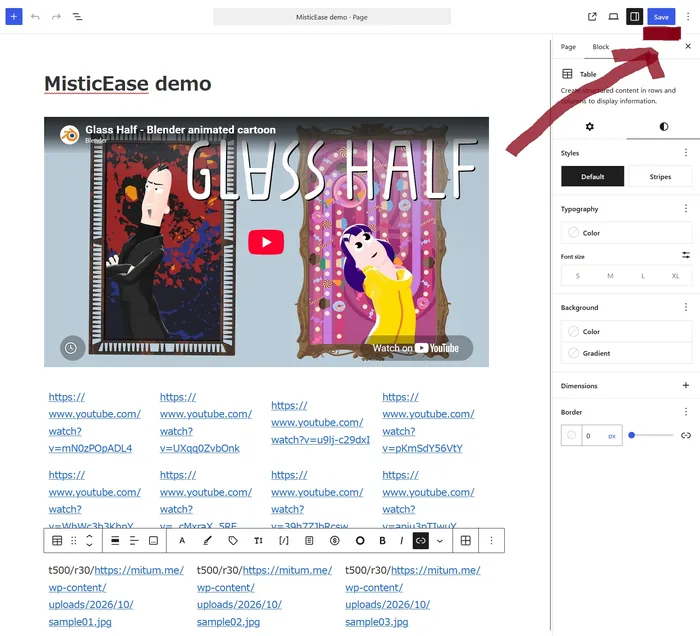
As far as the videos go, your work is done the moment you paste the URL. After that, write your text and save as usual. No shortcodes, no custom HTML, no complicated settings.
1Paste
2Save
3Watch while reading
Videos already in your posts change the same way as soon as you activate MisticEase. There is nothing to paste again.
Try it: paste one URL, save a draft, and preview it.
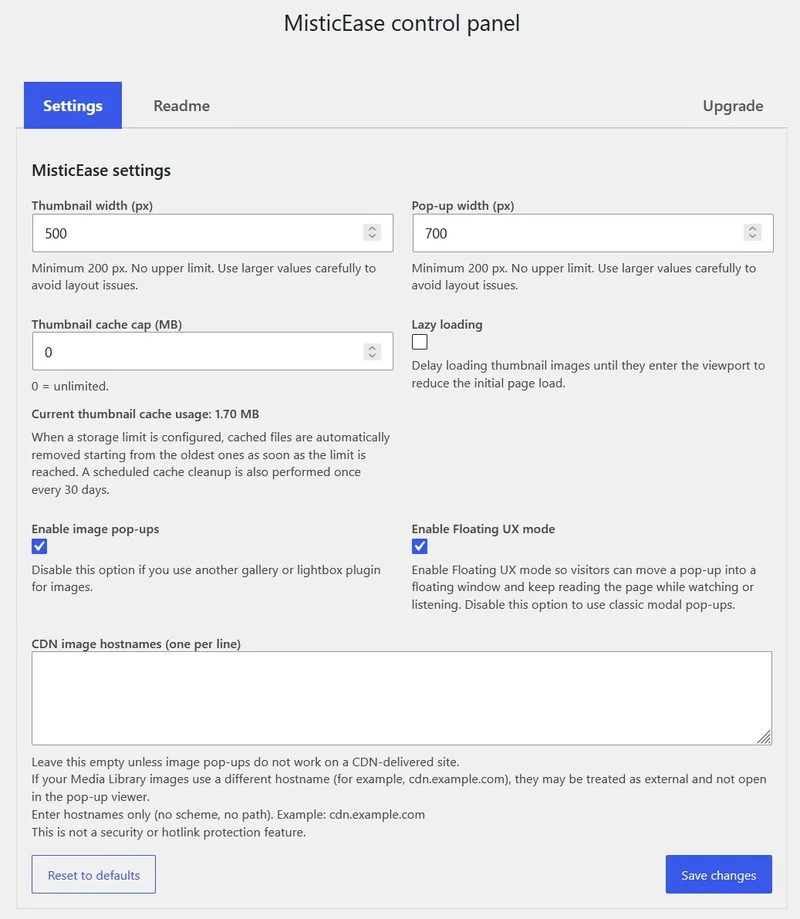
One settings screen for your site.
A short prefix when one item should differ.
Slash Markup
A URL you simply paste is shown at your default width. When one item needs a different size, or should be a text link instead of a thumbnail, write a short prefix right before its URL. That is Slash Markup. You never have to use it.
| What you write | What visitors see | What changes |
|---|---|---|
t100/URL |
|
The thumbnail is 100 px wide. |
t300/p1280/URL |
|
The thumbnail is 300 px wide. The popup opens 1280 px wide. |
n/URL |
The video title becomes a link instead of a thumbnail. MisticEase fetches the title for you. | |
/Watch the clip/URL |
Your own words become the link. Handy when you mention a video inside a sentence. |
In the Block Editor, type the prefix first, then paste the URL. Prefixes can be combined: t300/r30/p980/URL also rounds the corners by 30 px. A width is a maximum, so thumbnails shrink to fit narrower spaces.
A lot of care went into making this freely controllable, so it may well help you express what you have in mind. Every demo on this page is placed with the same markup.
Full details are in the Readme tab on the plugin’s settings screen. There is no need to go looking elsewhere.
Enlarge WordPress images on click with a lightbox
Insert an image from your Media Library and set its link to “Media File”. That is all. Visitors click to open it larger. When a page has several images, they can move to the next or previous one inside the popup. Images can be dragged too, and placed beside a video.
Already use a gallery plugin? Turn off image popups in the settings. Your gallery keeps handling the images, and MisticEase handles only the videos.


Click to enlarge. Click the left or right side of the open image to move to the previous or next one.
Want to embed lots of videos, but worried your page will slow down?
MisticEase does not put video players on your page. It puts thumbnail images there. Twelve videos are lined up right here, and not one player loads until you click.









- Players load on clickA video player is loaded only when a visitor clicks its thumbnail.
- Thumbnails come from your own siteA thumbnail is fetched once, saved on your site, and served from there afterwards. Your page does not ask the video service for it on every view.
- Space is reserved in advanceVideo thumbnails have a set width and height, so the text around them does not jump while they load.
- Lazy loading is your choiceThumbnails can wait to load until they come into view. Turn this on or off to suit the page.
Visitors keep watching while they scroll and read
That changes what a page can be used for.
Online lessons
Students play the lesson video and read the text you prepared, on the same page.
Tutorials
Readers keep the how-to video beside the written steps and follow along.
Side by side
Open one video and one image together, and compare the footage with a diagram or the finished result.
If you have read this far with a video still open, you are doing it right now.
Frequently asked questions
Is MisticEase free?
Yes. It is a free download from WordPress.org. Everything demonstrated on this page works in the free version.
Do I need shortcodes?
No. Paste the video URL and save. You write no shortcodes and no custom HTML.
Will embedding lots of videos slow down my page?
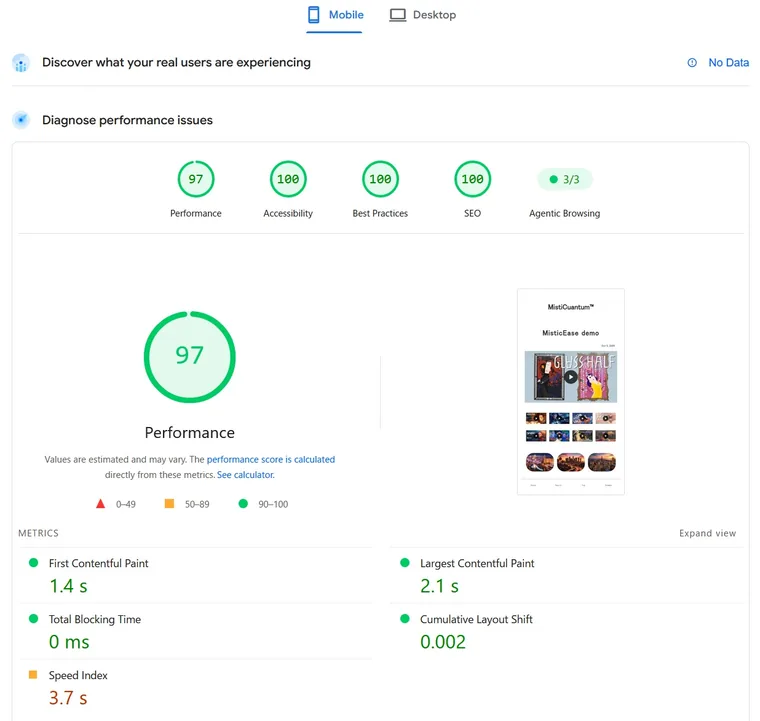
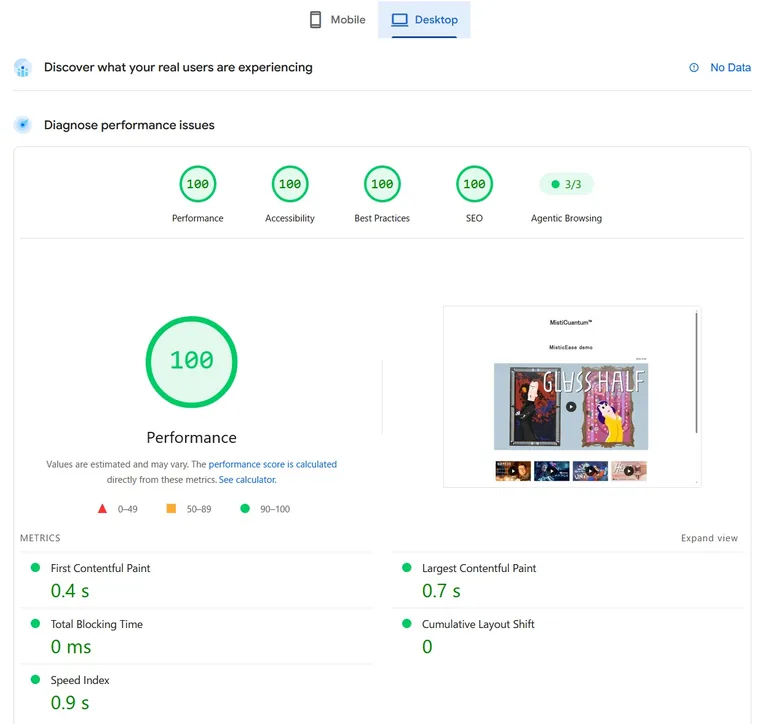
The demo page shown in the quick start (nine videos and three images) was measured when it was built, and no drop in performance was seen. PageSpeed Insights gave it 97 on mobile and 100 on desktop (Oct 5, 2026).
Does it work with the Classic Editor?
Yes. In the Block Editor and the Classic Editor alike, you just paste the URL.
Which video sites are supported?
YouTube (including Shorts, live streams, and youtu.be short links), Vimeo, and Dailymotion (including dai.ly). Playlist and channel URLs do not become thumbnails. They stay ordinary links.
What happens to videos I have already embedded?
Once you activate MisticEase, they appear as thumbnails on the published page. You do not need to edit your posts. If you deactivate the plugin, they go back to how they were.
What happens on phones?
Thumbnails and popups work on phones. In windows 640 px wide or narrower, dragging a popup around is not practical, so only the floating feature is turned off.
Is this a sticky video plugin?
No. It does not pin a video to a corner automatically. Visitors drag the popup themselves and put it wherever they like.
Does it support multisite?
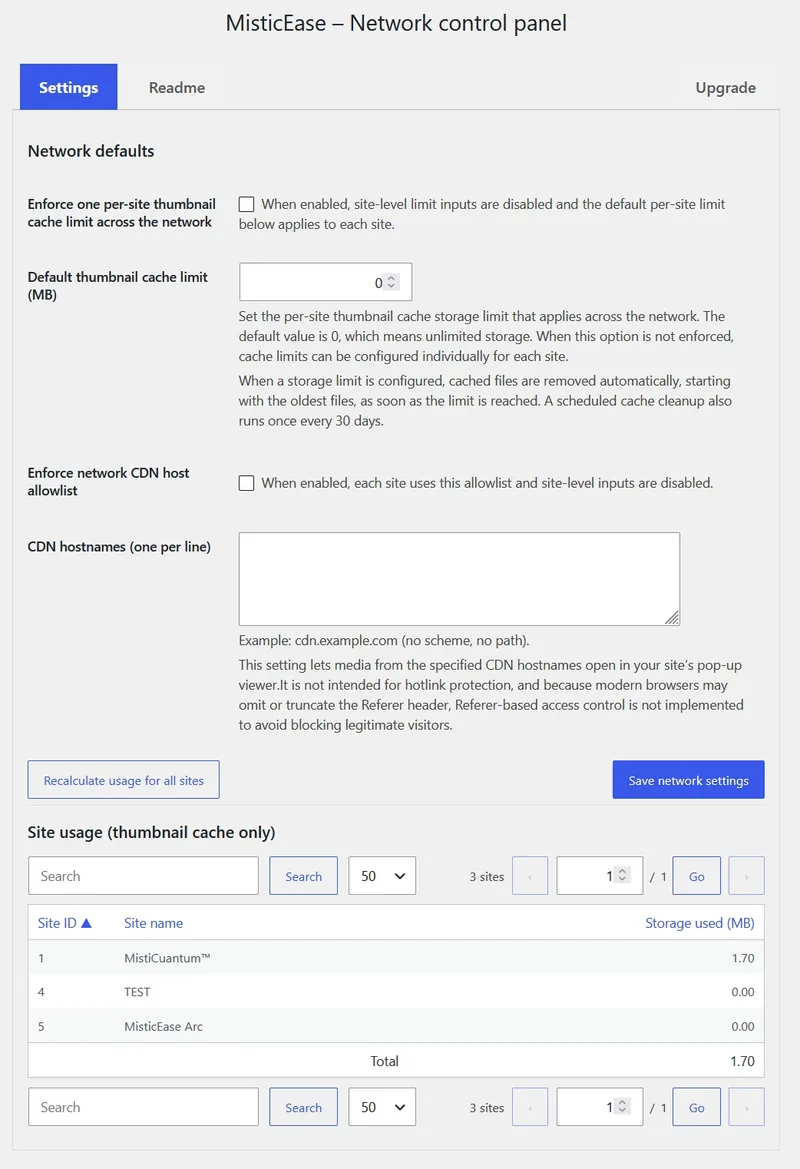
Yes. Each site has the same single settings screen. In addition, network administrators get their own panel to manage the per-site cache limit and the CDN allowlist in one place, with a list of how much storage each site uses.
How are thumbnails stored?
A thumbnail is fetched once, saved on your own site, and served from there. Thumbnails unused for 90 days are removed automatically by a scheduled cleanup. If one is needed again, a small image is shown at once and the high-resolution one is fetched again in the background. You can also set a storage limit.
Why one thumbnail per video?
To avoid piling up copies of the same image in different sizes. MisticEase saves one high-resolution thumbnail and scales it down to the size you set. Whatever size you choose, it stays sharp on high-density screens.
Which player plays YouTube videos?
YouTube videos play in the youtube-nocookie.com player.
A note from MistiCuantum™
We designed MisticEase backwards from one goal: adding media to a page should go smoothly from start to finish, with no stress along the way.
We will keep improving it. Tell us what you think in a review or on the support page at WordPress.org.
Give your visitors a page with a reason to stay.
Take back your time to think about what to write next.
With floating mode, your page becomes a place where people stay. Turn visitors into fans. MisticEase gives editors back the time they used to spend on adding media. Start by pasting one URL and see it on your own page.
Free. Works with the Block Editor and the Classic Editor.