
MisticEase Arc™
Just paste.
Your files open in floating, draggable popups.
Add PDFs, video, audio, Office documents and images to WordPress posts without leaving your writing. Drop a file into the movable Palette in the editor, copy its file code and paste it into your text. When the page is viewed, MisticEase Arc™ turns the code into a popup link. Readers open the file, drag the popup anywhere in the browser window and keep reading.
One upload, copy and paste workflow for 22 file formats, including video, audio, PDF, Word, Excel, PowerPoint and images. It works inside a paragraph in the Block Editor and in the Classic Editor, with no embed blocks, shortcodes or hand-written HTML.
From $59/year for 1 site. Payment details are required for the 10-day free trial; cancel before it ends to avoid the first charge.




Try a draggable popup.
On a wide screen, click a photo, drag the popup by its edge, then scroll the page with it still in view.
Agent 327: Operation Barbershop · Blender Institute · Original character © Martin Lodewijk · CC BY-ND
Drop a file.
Paste its file code.
Publish.
Keep your post in view while you upload files, preview them and copy their file codes from the Palette. The left recording shows the editing process; the right shows readers opening and moving the resulting popups.
|
|
|


Both recorded on a WordPress site with MisticEase Arc™. The photos, video and music are AI-generated samples.
| 22file types, added the same way | 4floating windows at once* | 0lines of HTML to write |
*Floating UX mode is on by default. On a viewport wider than 640 CSS px, up to four windows can be open together: two images from different gallery groups, plus two other media types such as a video and a PDF. The viewport is the area inside the browser window that displays the page.
Try one file.
See how it works.
01
Drop a file into the Palette.Activate MisticEase Arc™, then open a post or page in the WordPress editor. Click the Palette button to open the panel. The button is in the same position in the Block Editor and the Classic Editor. Move the Palette wherever it is convenient within the editing screen. Drop one file in a supported format into the upload area. After the upload succeeds, it appears in the Palette with its file code. |
The Palette in the editor. Click to enlarge. |
02
Copy its file code.A file code identifies an uploaded file in MisticEase Arc™. Click Copy beside that file to put its code on your clipboard. You do not need to type or remember the code. |
file-xxxxxxxxxxCopyExample format of a file code. The Palette supplies the actual code. |
03
Paste. Save. Open the preview.Paste the code on its own in a paragraph and save the post or page. Open the page preview: the code becomes a text link using the file’s name. Click it to open the file in a popup. On a browser window wide enough for floating controls, drag the popup by its edge to move it. No label, size option or HTML is needed for this first test. The example on the right uses just a file code. Once you have tried your own file, the diary below shows how to choose the link text. |
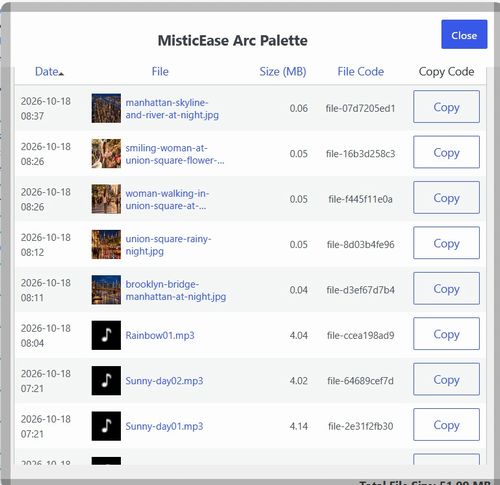
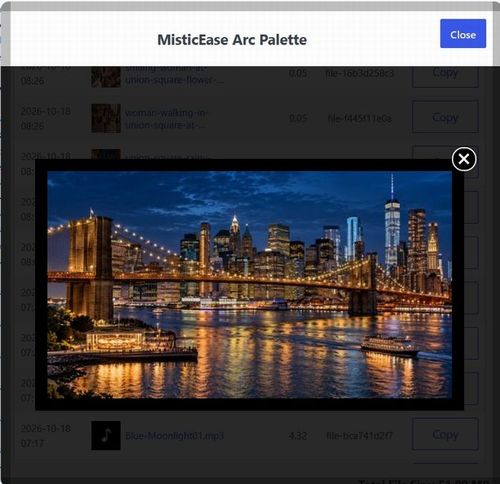
Check a file before you place it.Open an uploaded file inside the Palette to preview it before adding its file code to your page. Check the file while keeping your writing in view, then copy its code when you are ready to use it. |
A file preview inside the Palette. Click to enlarge. |
Try it
on this page.
Now choose the words readers will click. The left panel shows a diary entered in a paragraph block, with an optional label before each file code. Save it and view the page: readers see the diary on the right, with popup links inside the sentences. Click a highlighted word to open its file.
|
What was typed
Today was my day off. I took a leisurely walk, enjoying the lovely /scenery/file-fbca705bdf along the way. I stopped at a /café/file-c5316d5e3b///, where I spent some time relaxing and listening to soothing /music/file-556e7f6c5c///. |
Optional link text: put your words between slashes immediately before the file code, as in /Your label/file-xxxxxxxxxx. Start the label at the beginning of the paragraph or after a space. Here, /scenery/ makes “scenery” the link text. Without a label, the link uses the file’s name.
The end marker has a different job: when text or punctuation follows a file code or URL without a space, put /// immediately after the code or URL to mark where it ends. That is why the café code ends with ///, and the music code with ///. If a space follows, as it does after the scenery code, the marker is unnecessary.
Open the Slash Markup cheat sheet
Link labels and display-size options are optional. The cheat sheet is a quick reference; full Slash Markup instructions are in the Readme tab of the plugin’s settings panel.
Paste image codes.
Get a lightbox gallery.
For each uploaded image, put a thumbnail-width option before its file code. The four examples below use t300/ to request thumbnails 300 px wide. Arrange the codes in your layout, then save the page. Click a thumbnail to open the image and use the arrows to browse the page’s popup images.
|
|
|
|
|




t300/file-ca1c9b354a t300/file-d3ef67d7b4 t300/file-b58290854a t300/file-8d03b4fe96
The option is t followed by a width in pixels and /. For example, use t300/ for a 300 px thumbnail, or t200/ for 200 px. On an image file code, this also switches the display from a text link to a thumbnail. Thumbnails shrink to fit narrower containers.
Need more than one gallery on a page? Put g1/, g2/ and so on before image codes or image URLs. Previous and next stay within each group, and readers can pin one gallery’s window, then open another gallery to compare them side by side.




Video URLs become thumbnails too.
Paste a YouTube or Vimeo video URL into your content and save the page. MisticEase Arc™ displays a clickable video thumbnail; the popup player is created when a reader clicks it. External videos use their URLs rather than uploaded-file codes.
t300/p800/https://www.youtube.com/watch?v=UXqq0ZvbOnk
To request a popup width, use p followed by a width in pixels and /. This example adds p800/ for an 800 px popup. Choose another number for a different width; the popup is constrained to fit the viewport. The t300/ option controls the thumbnail, not the popup.
PDFs, audio, video, documents.
One workflow for every page.
Hand out a PDF worksheet in a lesson, add an audio player to a portfolio, tell a travel story with photos, or open a PowerPoint deck beside a product guide. Every one uses the same upload, copy and paste workflow. Click a sample link or thumbnail to open its file.
Hand out the worksheet inside the lesson.
Upload a PDF and place its file code after a label such as /Open a sample PDF/. On the published page, students click that label to open the worksheet. In the example below, p600/ requests a popup width of 600 px. In-popup PDF viewing depends on the reader’s browser.
/Open a sample PDF/p600/file-abdb4ff99a
Let visitors listen while they look.
Upload an audio file and paste its code into your page. Readers open the audio popup and start playback. In floating mode, they can position the player anywhere within the browser window and listen while scrolling through the same page.
/Play a sample track/file-2e31f2fb30
Tell the story with the photos in it.
Use a file code on its own for a text link, or add a thumbnail-width option to an image code to show a photo in your layout. Here, t260/ requests a 260 px thumbnail. Readers click the photo to open it in a popup.
t260/file-f445f11e0a

Read the manual while following the steps.
Add a document’s file code to your instructions. Readers click its link to open a preview. In floating mode, they can place the preview anywhere within the browser window while reading the steps. Office previews use Microsoft’s online viewer; PDF previews depend on the browser.
/View sample slides/p600/file-d093be6505
The 22 types: MP4, M4V, MOV · MP3, M4A, OGG, WAV · PDF · JPG, JPEG, PNG, GIF, WEBP · DOC, DOCX, XLS, XLSX, PPT, PPTX, PPS, PPSX · TXT. Optional Slash Markup controls link labels, thumbnail widths, popup widths and image captions. Change the numbers in the width examples to suit your layout.
Four things it does for you.
- 01
Paste a code. Get a popup link.
Insert an uploaded file into a paragraph using its code. MisticEase Arc™ generates the link’s HTML when the page is displayed, so you can add media without building a separate embed block.
- 02
Put the media where you want it.
Drag a popup into a floating window and position it anywhere within the browser window. Keep up to four windows open: a document beside the instructions, audio while browsing photos, or two image galleries side by side. See the FAQ for window limits and narrow-screen behavior.
- 03
Keep your writing in view.
The Palette brings uploads, previews and file-code copying into the editor. Use the same workflow for the 22 supported formats, then paste the code where it belongs in your text.
- 04
Keep pages fast.
Pages carry thumbnails and links, not players. Video and audio players and document viewers are created only when a reader opens them, and video thumbnails are served from your own site. Images start loading as soon as a reader points at them or moves keyboard focus to them, so popups open quickly.
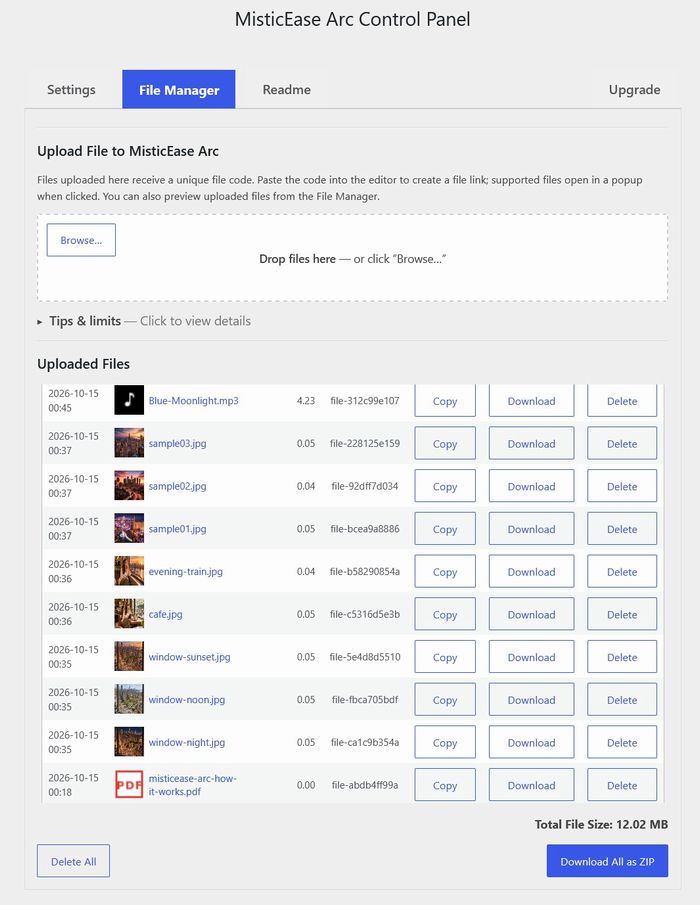
Manage the files uploaded through MisticEase Arc™.
The File Manager lists those files and their codes in the WordPress admin area. Copy a file code, download or delete a file, or download all of them at once as a ZIP. Back up the database as well if you want to preserve the file-code records.
What $59 a year adds.
Both plugins open supported video URLs and Media Library images in popups. MisticEase Arc™ adds the Palette and file-code workflow for 22 uploaded-file formats, with dedicated storage and a File Manager.
| What you can do | MisticEase — free | MisticEase Arc™ |
|---|---|---|
| Video URLs from YouTube and Vimeo | ✓ | ✓ |
| Images from the Media Library | ✓ | ✓ |
| Floating windows that stay open while readers scroll | Up to 3 | Up to 4 |
| Separate image galleries on one page | ✓ | ✓ |
| Slash Markup display options | ✓ | ✓ |
| Only in MisticEase Arc™ | ||
| Uploaded images via file codes (JPG, JPEG, PNG, GIF, WebP) | — | ✓ |
| Uploaded video files via file codes (MP4, M4V, MOV) | — |
✓ Try it |
| Audio via file codes (MP3, M4A, OGG, WAV) | — |
✓ Try it |
| PDF via file codes | — |
✓ Try it |
| Word, Excel and PowerPoint previews via file codes | — |
✓ Try it |
| Plain text via file codes | — |
✓ Try it |
| The floating Palette in the editor | — | ✓ |
| File Manager for MisticEase Arc™ uploads | — | ✓ |
| Storage apart from the Media Library | — | ✓ |
| No-index directive on uploaded-file responses | — | ✓ |
| Network-wide storage and upload limits for WordPress Multisite | — | ✓ |
Good to know before you start
- Office previews use Microsoft’s Office Online Viewer for read-only viewing. Microsoft must be able to fetch the file from a public HTTPS URL. Local-only files and file URLs requiring a login cannot be previewed by that service.
- Vimeo thumbnails may initially show a placeholder while MisticEase Arc™ fetches a thumbnail. A successful fetch is cached; availability depends on the video and Vimeo’s response.
- Browser support matters: popups and gallery navigation require JavaScript. Video and audio playback depends on the browser’s support for the file’s encoding, and PDF previews depend on its PDF viewer.
Questions.
What is a file code?
A file code, such as file-xxxxxxxxxx, identifies a file uploaded through MisticEase Arc™ on your site. Copy it from the Palette or File Manager and paste it as text into a post or page. MisticEase Arc™ generates the link’s HTML when that content is displayed. The link uses the file’s name unless you supply a label. Image codes can display thumbnails when you add a thumbnail-width option.
What is the Palette?
The Palette is a movable panel available while you edit a WordPress post or page. It lets you upload supported files, preview them and copy their file codes while keeping your writing in view. It is available to administrators with an active trial or paid license.
Do I have to learn Slash Markup?
No display options are needed to try a file code on its own: it produces a text link using the file’s name. Optional Slash Markup lets you choose a label, show an image thumbnail, request a popup width or add an image caption. For example, t300/ requests a 300 px image thumbnail; p800/ requests an 800 px popup. Change the numbers to suit your layout; both widths remain subject to the space available. A custom label goes first: /Your label/file-xxxxxxxxxx. Separately, if text or punctuation follows a file code or URL without a space, add /// immediately after the code or URL to mark its end. Full instructions are in the Readme tab of the settings panel.
Which editors does it work in?
MisticEase Arc™ supports both the WordPress Block Editor and the Classic Editor. Use the Palette button, in the same position in both editors, to open the movable panel. In the Block Editor, paste a file code into a paragraph without adding a separate media or Custom HTML block. In the Classic Editor, paste it into your text instead of writing the popup link’s HTML. The plugin generates that HTML when the page is displayed.
Who can upload files?
Administrators with an active trial or paid license can use the Palette and File Manager, subject to site and network upload settings. Other authors can paste a valid file code supplied by an administrator into content on the same site; they do not need access to the upload tools.
What does my site need?
WordPress 6.0 or later and PHP 7.4 or later. PHP must be able to create and use wp-content/misticease-storage; activation stops with an explanation if the required storage cannot be created. Readers need JavaScript for popups. Office previews also require a file URL accessible to Microsoft’s online viewer.
Does it support WordPress Multisite?
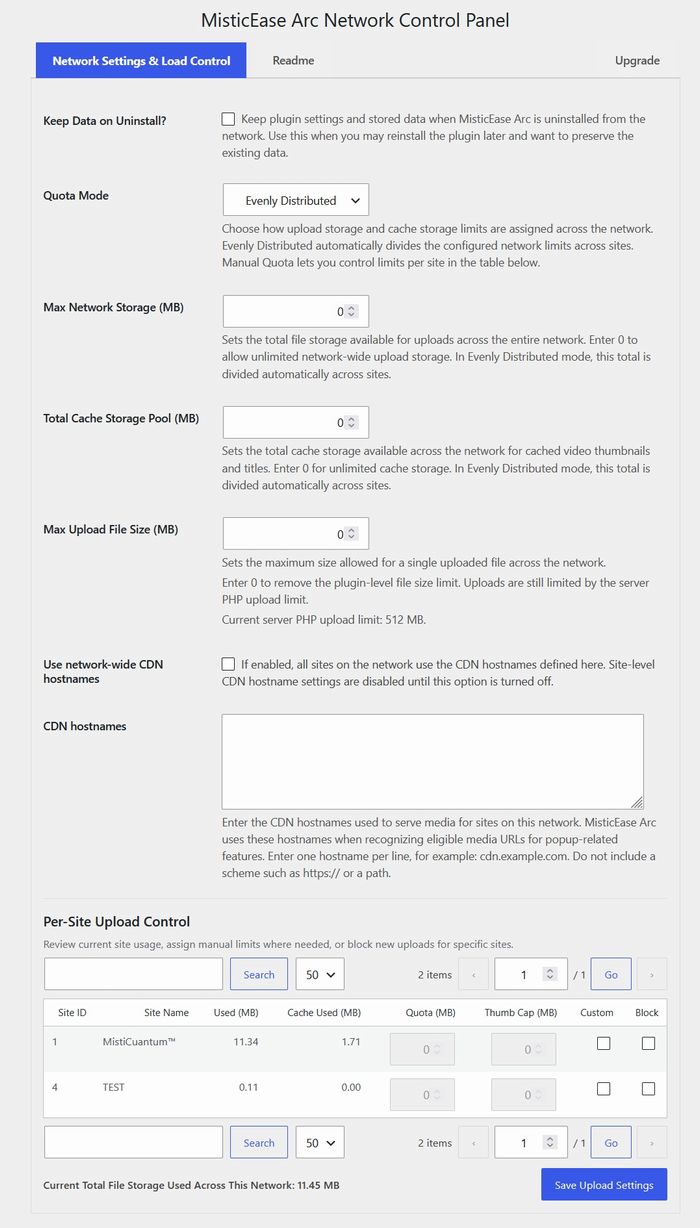
Yes. A dedicated network control panel lets super administrators manage upload storage, thumbnail-cache limits and maximum upload file size across the network. They can also review per-site usage, set individual quotas and block new uploads for selected sites.
Where are files stored, and how do I back them up?
Files uploaded through MisticEase Arc™ are stored in wp-content/misticease-storage, apart from the Media Library. Their file-code records are stored in the WordPress database. Back up both the storage directory and the database. When migrating, restore the storage directory and its database records together, along with the WordPress site configuration required for the new server.
What are the upload limits?
Your server’s PHP upload limits and any site or network storage limits apply. Files upload one at a time, and each user can upload up to 10 files per minute. When that limit is reached, the uploader waits and continues automatically. A valid file code is issued after an upload succeeds.
How do Office previews work?
MisticEase Arc™ embeds Microsoft’s Office Online Viewer to preview supported Word, Excel and PowerPoint files. The viewer fetches the file from your server, so its HTTPS URL must be publicly accessible without a login. Local-only or access-restricted file URLs do not work with this service. The preview is read-only.
How do I add a PDF to a WordPress post?
Upload the PDF in the Palette, copy its file code and paste it into your text, optionally after a label such as /Open the worksheet/. Readers click the link to open the PDF in a popup, shown by their browser’s PDF viewer. You do not need a PDF embed block or a shortcode.
Can readers view PDFs on phones?
PDF popups use the browser’s PDF-viewing capability. In-popup PDF viewing is available only where the mobile browser supports embedded PDFs.
How many files can be open at once?
Floating UX mode is on by default. On a browser viewport wider than 640 CSS px, up to four windows can be open: two images from different gallery groups, plus two windows for other media types, such as a video and a PDF. Drag a popup by its edge to make it a floating window, then position it anywhere within the browser window. Opening another item of the same media type, or an image from a gallery that is already open, changes that window. To keep an image open while you open one from another gallery, pin its window first. If you turn Floating UX mode off, or the viewport is 640 px or narrower, only one popup is shown at a time.
Will lots of media slow my page down?
Pages carry thumbnails and links, not players. Thumbnails are part of the page, while popup video and audio players and PDF or Office viewers are created when their links or thumbnails are opened. Images used as thumbnails load as part of displaying those thumbnails; their timing also depends on the lazy-loading setting. Video thumbnails are fetched once and then served from your own site.
Can readers use the popups with a keyboard?
Yes. Tab moves between the controls, Escape closes the topmost window, and focus returns to the link that opened it.
Can I use it alongside another gallery or lightbox plugin?
Yes. Turn off image popups and Floating UX mode in the settings, and your gallery plugin keeps handling Media Library images. Images inserted with file codes still open in MisticEase Arc™ popups.
What if a reader has JavaScript turned off?
Popups, floating controls and gallery navigation will not run. Server-rendered file-code links and image markup can still be present, but the interactive viewing experience requires JavaScript.
Why does Vimeo show a placeholder at first?
If a Vimeo thumbnail is not cached, MisticEase Arc™ may show a placeholder while fetching one. After a successful fetch, it keeps the thumbnail in its cache. If the video is unavailable or Vimeo does not return a thumbnail, the placeholder may remain.
Are my files private?
Avoid uploading or publishing confidential or sensitive files on the internet. MisticEase Arc™ does not make uploaded files private: a file URL can be opened directly even if the page containing the link is not public. File codes identify files; they do not provide access control. Uploaded-file responses ask search engines not to index them, but that instruction does not restrict access or guarantee exclusion from search results.
What happens if I stop renewing?
Turning off automatic renewal stops the next renewal payment; your paid license continues until its expiry date. After it expires, uploaded files remain stored and existing file-code content can still be displayed while MisticEase Arc™ remains installed and active. Features shared with the free version continue, but premium upload tools, the Palette and File Manager are disabled. If you want copies through those tools, download them before the license expires.
What happens when I uninstall it?
Uninstalling means deleting the plugin, not just deactivating it. By default, uninstalling removes its settings and uploaded files. To retain that data, enable “Keep data on uninstall” before deleting the plugin. Keeping the files does not keep file-code conversion or popups running after the plugin has been removed; back up your files and database before uninstalling.
How do I switch from MisticEase — free?
Activate MisticEase Arc™ on the same site. It automatically deactivates the free MisticEase plugin. Existing supported video URLs and Slash Markup remain usable through MisticEase Arc™; you do not need to replace them with file codes.
Every feature.
From $59 a year.
Every plan has every feature and the same 10-day free trial. Only the number of sites differs.
Use the 10 days to test your site.
Use the trial to check carefully that MisticEase Arc™ works in your WordPress environment and suits the pages you want to build. Upload your own files and test the complete workflow: file-code links, thumbnails, media playback, document previews and floating windows. Check the browsers and devices your readers use.
Complete these checks before the trial ends. If the plugin does not work as expected or does not suit your needs, cancel before the end of the 10-day trial to avoid the first charge. The cancellation link is provided below.
1 site
$59USD / year
10-day free trial
For your own site.
- Cancel before the 10-day trial ends to avoid the first charge. Sign in to the Freemius Customer Portal, go to the Licenses tab to cancel your subscription.
- Existing file-code content remains usable after license expiry while MisticEase Arc™ stays installed and active.
- Freemius handles checkout, billing and subscription management.
More than one site
5 sites
$199USD / year
$39.80 per site
10-day free trial
For several projects.
10 sites
$349USD / year
$34.90 per site
10-day free trial
For client sites or a small network.
30 sites Lowest price per site
$499USD / year
$16.63 per site
10-day free trial
For a larger group of sites.
Trial and billing. Payment details are required for the trial. Unless you cancel before it ends, Freemius charges the selected annual plan when the trial ends. The subscription renews annually until you cancel automatic renewal.
After your paid license expires. Uploaded files remain stored, and existing file-code content continues to display while MisticEase Arc™ stays installed and active. Premium uploads, the Palette and File Manager are disabled.
WordPress Multisite. Each site in the network counts as one site for licensing.
Just paste.
Get a link that opens the file.
Open the Palette, upload a supported file, copy and paste its code into your text, then save or publish. Let MisticEase Arc™ generate the popup link’s HTML.